
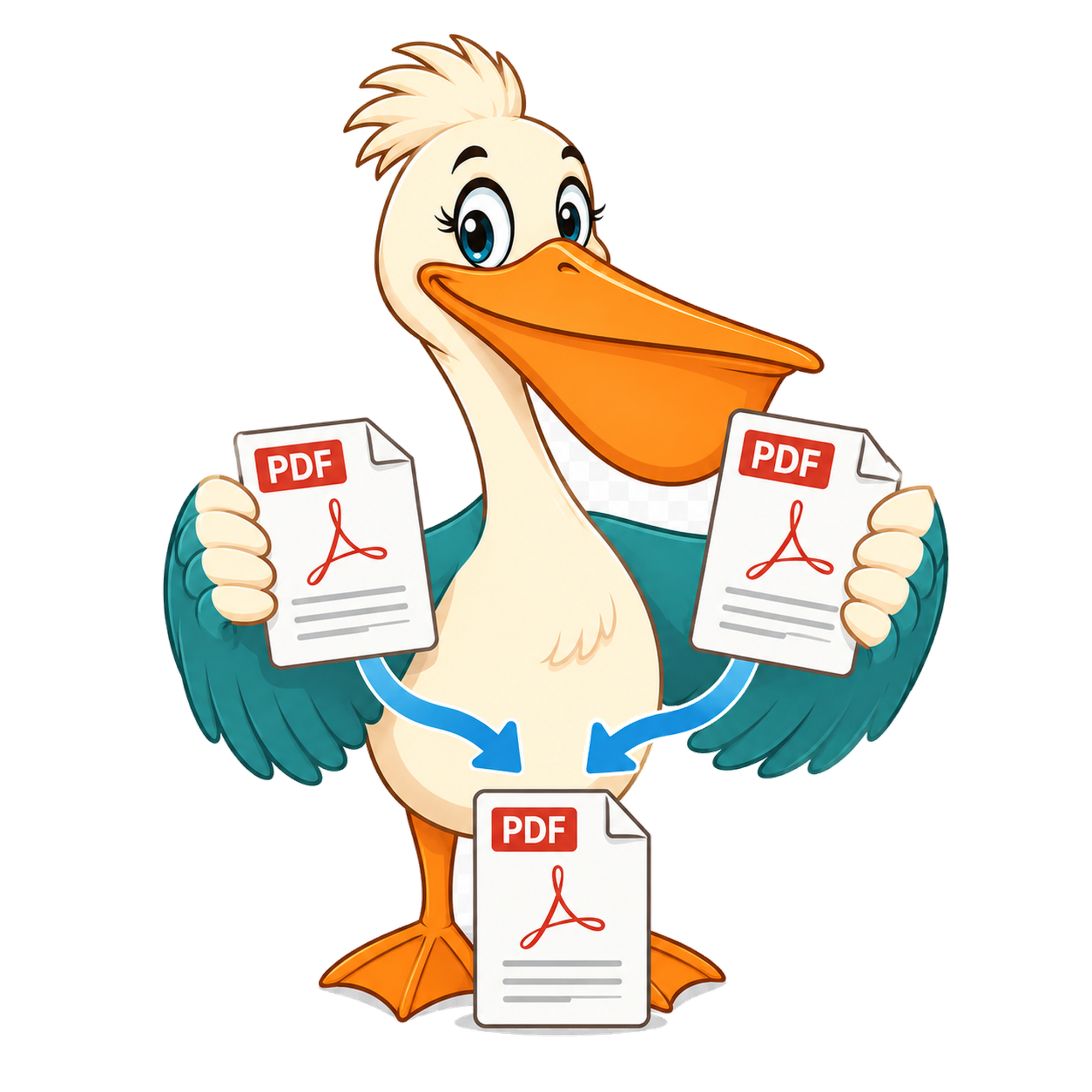
Merge PDF — free forever
Combine several PDFs into a single file. Drag to reorder before merging.
Merge PDFs — free forever
Drop two or more PDFs, drag the thumbnails into the order you want, and download a single combined PDF. No watermark, no upgrade trap.
Choose first PDF to mergeInteractive tool loading…
How it works
Drop your first PDF on the Pelican Drop Desk, then add more files in the Merge tool.
Drag thumbnails to re-order pages, rotate, or remove any you don't need.
Click Merge to download a single combined PDF — no watermark, ever.
Use cases
Combine invoices into a monthly pack
Drop the month's invoices in, drag them in date order, export one PDF for accounting.
Build a deal room document
Merge contract, schedules, and exhibits into one shareable file.
Stitch scanned pages into one document
Phone scans, desktop scans, and faxes — combined cleanly, in the order you choose.
Free account & email verification
Start working now. Create a free account and verify your email only when your PDF is ready to download. We use verification to keep automated abuse off the site — it's the reason we can keep every tool free forever with no paid plan, no watermark, and no upgrade trap.
Your privacy
Your PDFs are processed entirely in your browser using WebAssembly — they are never uploaded to a PDF Pelican server. We only store anonymous analytics about which tools people use, never the contents of your files.
About this tool
Upload two or more PDFs, reorder them by dragging, then download the combined PDF. Files never leave your browser.
What 'merge' actually means for a PDF
Merging PDFs is the simple-sounding operation that takes two or more files and produces one new PDF containing every page from every source, in the order you choose. Under the hood it's a little more careful than that: PDF Pelican walks the page tree of each input, copies the page objects (and the fonts, images, and form fields each page depends on) into the output document, and rebuilds the cross-reference table so the new file opens cleanly in any reader.
The merged PDF is a normal, valid PDF. There's no proprietary wrapper, no link back to PDF Pelican, and nothing that ties the file to our service after the download. You can sign it, email it, print it, or run it through another tool exactly as if you'd produced it from scratch.
Use the drag-to-reorder canvas before merging
Once you've dropped your PDFs on the Pelican Drop Desk, the Merge tool shows each one as a tile you can drag into the order you want. Drop them top-to-bottom in the sequence the merged file should follow. If you change your mind, drag again — nothing is committed until you click Merge.
If you need to reorder individual pages, not just whole documents, the fastest route is to burst the source PDFs first (one file per page), then drag those single-page PDFs into the merge canvas in the exact order you need. Slower than a dedicated page-level reorder, but completely flexible.
Common reasons people merge PDFs
The recurring pattern is 'one thing that arrived in pieces'. A signed contract returned as scattered pages, an accounting pack assembled from a dozen invoices, a deal room document built from a contract plus exhibits plus schedules, a research paper combined with its supplementary appendices. Merging lets you ship that one thing as one file so the recipient doesn't have to reconstruct it.
Less obviously, merging is also useful as a final cleanup step after splitting. Split out the pages you actually want to keep, drop the rest, and merge the survivors back together to produce a tidy, much shorter document.
Privacy and limits
The merge runs entirely in your browser tab. None of the source PDFs leave your device, and the combined output is built locally and downloaded straight from memory. PDF Pelican never sees the contents of your files — we only record anonymous analytics about which tool was used.
Because the work happens in-browser, the only real limit is your device's available memory. A modern laptop comfortably merges dozens of multi-megabyte files. If you're on a phone, large scan-heavy merges are worth doing on a bigger machine.
FAQ
Can I reorder pages?
You can reorder whole PDFs. For page-level reordering, split each file first then merge in the order you want.
Will the merged PDF have a watermark?
Never. PDF Pelican is free forever with zero watermarks.
How many PDFs can I merge at once?
There's no hard limit. The practical ceiling is your device's memory — merging 50 small PDFs on a laptop is fine; merging 500 large scans is heavier.
Does merging preserve bookmarks?
Bookmarks and outlines from each source PDF are concatenated into the merged document, in the order you arranged the files. Page numbers in the outlines are adjusted automatically.
What if my PDFs have different page sizes?
Merge keeps each source page at its original size. A Letter page next to an A4 page next to an A3 page all appear in the merged file at their native dimensions.
Are my files uploaded anywhere?
No. The merge happens in your browser tab using WebAssembly. The combined PDF is built locally and downloaded directly to your device.