
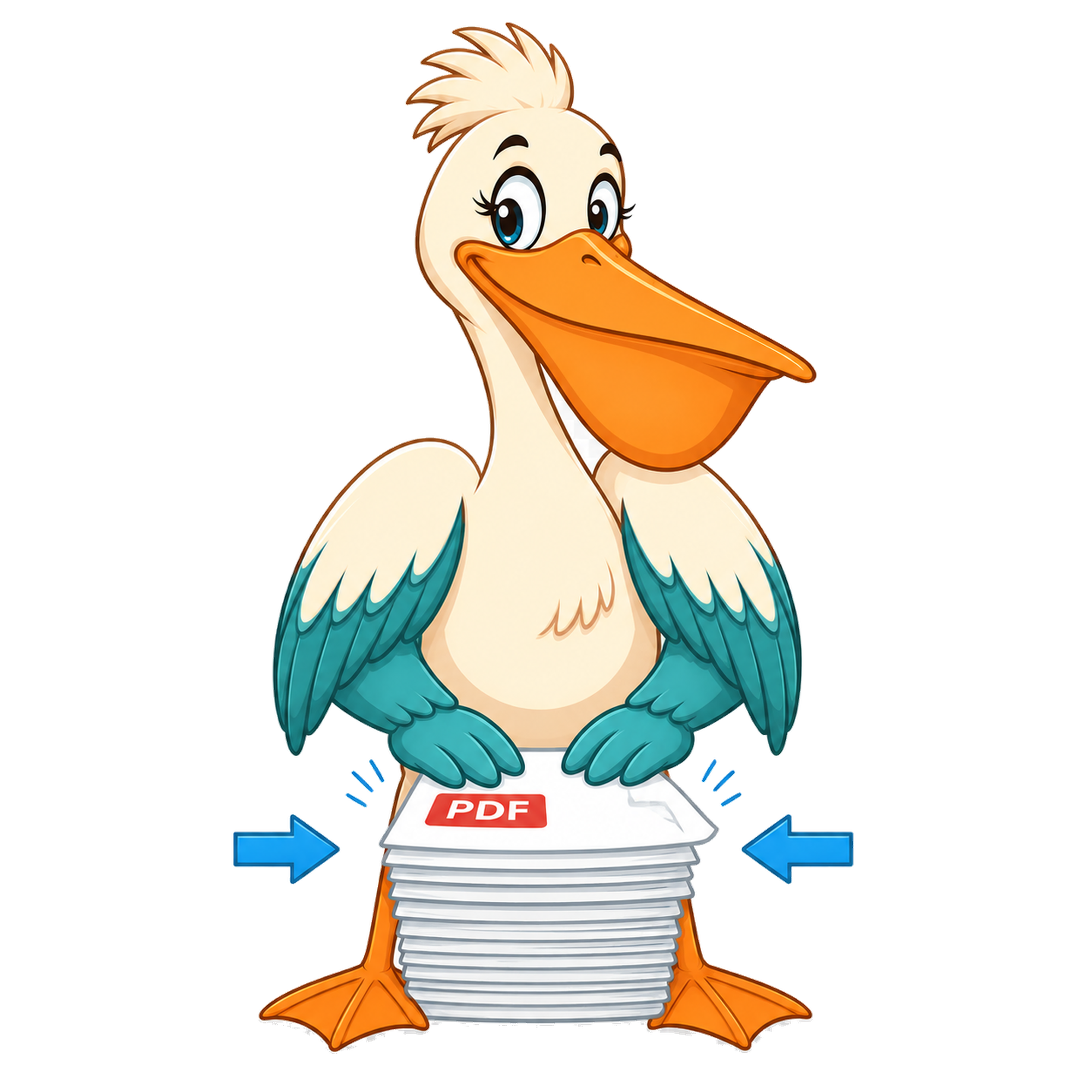
Reduce PDF file size — free
Run your PDF through the free Compress tool to shrink it. Most documents drop 60–90% in size with no visible quality loss in text.
- Free forever
- No watermark
- No paid plan
- Free for commercial use
- Google Ads funded
- Files stay on your device
Large PDFs cause problems everywhere: failed email attachments, slow uploads to client portals, storage warnings on shared drives, sluggish page loads on websites. Reducing the file size fixes all of these in one step.
The Compress tool focuses on the part of a PDF that's almost always responsible for its size: the embedded images. Text and vector content is left alone, so the document stays sharp.
What's making the file so big?
Embedded images. A modern phone or scanner captures images at 4–10 MB each. If a 'PDF' is really ten scanned pages, it's ten images stuffed into a PDF wrapper — easily 50–80 MB. Text-only PDFs, by contrast, are tiny.
If you've ever printed a Word document to PDF and ended up with a 300 KB file, that's a vector PDF. If you've ever scanned ten pages and ended up with 60 MB, that's an image-heavy PDF — and that's exactly what compression helps with.
Three levels
Low: light recompression, near-original quality. Use when the file is only slightly too big. Medium: balanced — the default for emailing scanned documents. High: aggressive — use when the file needs to be as small as possible and slight softening is acceptable.
What stays the same
Text remains selectable and searchable. Form fields, bookmarks, links and annotations are preserved. The page count, order, and orientation are unchanged.
Privacy
Compression runs locally in your browser. The PDF doesn't leave your device.
Where the size actually comes from
Open a 30 MB PDF in any decent viewer and look at what's on the pages. If it's mostly text, the file is almost certainly that big because of embedded images, screenshots, or scans hiding behind the text layer. Pure text is small — a 100-page novel as a PDF is often under 1 MB. The files that need compressing are the ones built around bitmap content.
The Reduce / Compress tool finds those embedded images and re-encodes them at a sensible target resolution and JPEG quality, dropping the file size without changing the text. Most documents shrink 50-80% with no perceptible quality loss on screen.
Choosing a quality level
Low: barely-visible savings, near-original quality. Use when you want the file slightly smaller but plan to print at high resolution. Medium: the default and the right pick for most documents. Shrinks scans dramatically without visible artefacts. High: smallest file, visible image softening — use only when Medium isn't small enough to clear the limit you're trying to hit.
If you don't know which to pick, start with Medium. If the file still isn't small enough, retry at High. If High still isn't small enough, the document might be a candidate for splitting and sending in parts.
What reduction won't do
It won't make a scanned PDF searchable — that's OCR. It won't remove blacked-out content — that's redaction. It won't fix a broken file — open the source first and re-export. And it won't shrink a file that's already minimal: a 200-page legal contract that's mostly text might come out almost identical in size, because there's nothing to recover.
Where the size actually comes from
Open a 30 MB PDF in any decent viewer and look at what's on the pages. If it's mostly text, the file is almost certainly that big because of embedded images, screenshots, or scans hiding behind the text layer. Pure text is small — a 100-page novel as a PDF is often under 1 MB. The files that need compressing are the ones built around bitmap content.
The Reduce / Compress tool finds those embedded images and re-encodes them at a sensible target resolution and JPEG quality, dropping the file size without changing the text. Most documents shrink 50-80% with no perceptible quality loss on screen.
Choosing a quality level
Low: barely-visible savings, near-original quality. Use when you want the file slightly smaller but plan to print at high resolution. Medium: the default and the right pick for most documents. Shrinks scans dramatically without visible artefacts. High: smallest file, visible image softening — use only when Medium isn't small enough to clear the limit you're trying to hit.
If you don't know which to pick, start with Medium. If the file still isn't small enough, retry at High. If High still isn't small enough, the document might be a candidate for splitting and sending in parts.
What reduction won't do
It won't make a scanned PDF searchable — that's OCR. It won't remove blacked-out content — that's redaction. It won't fix a broken file — open the source first and re-export. And it won't shrink a file that's already minimal: a 200-page legal contract that's mostly text might come out almost identical in size, because there's nothing to recover.
FAQ
- How small can I get a PDF?
- Scanned documents typically shrink 60–90% on Medium and a bit more on High. Vector PDFs may only shrink slightly because they're already efficient.
- Is the output a real PDF?
- Yes — a normal, standards-compliant PDF that opens in any reader.
- Will OCR still work?
- Yes. If the original was OCR'd, the searchable text layer is preserved.
- Will the output have a watermark?
- No. Compress output is unbranded.
Related free tools
PDF Pelican is funded entirely by Google Ads, which is how we keep every tool free forever with no watermark and no upgrade trap.