
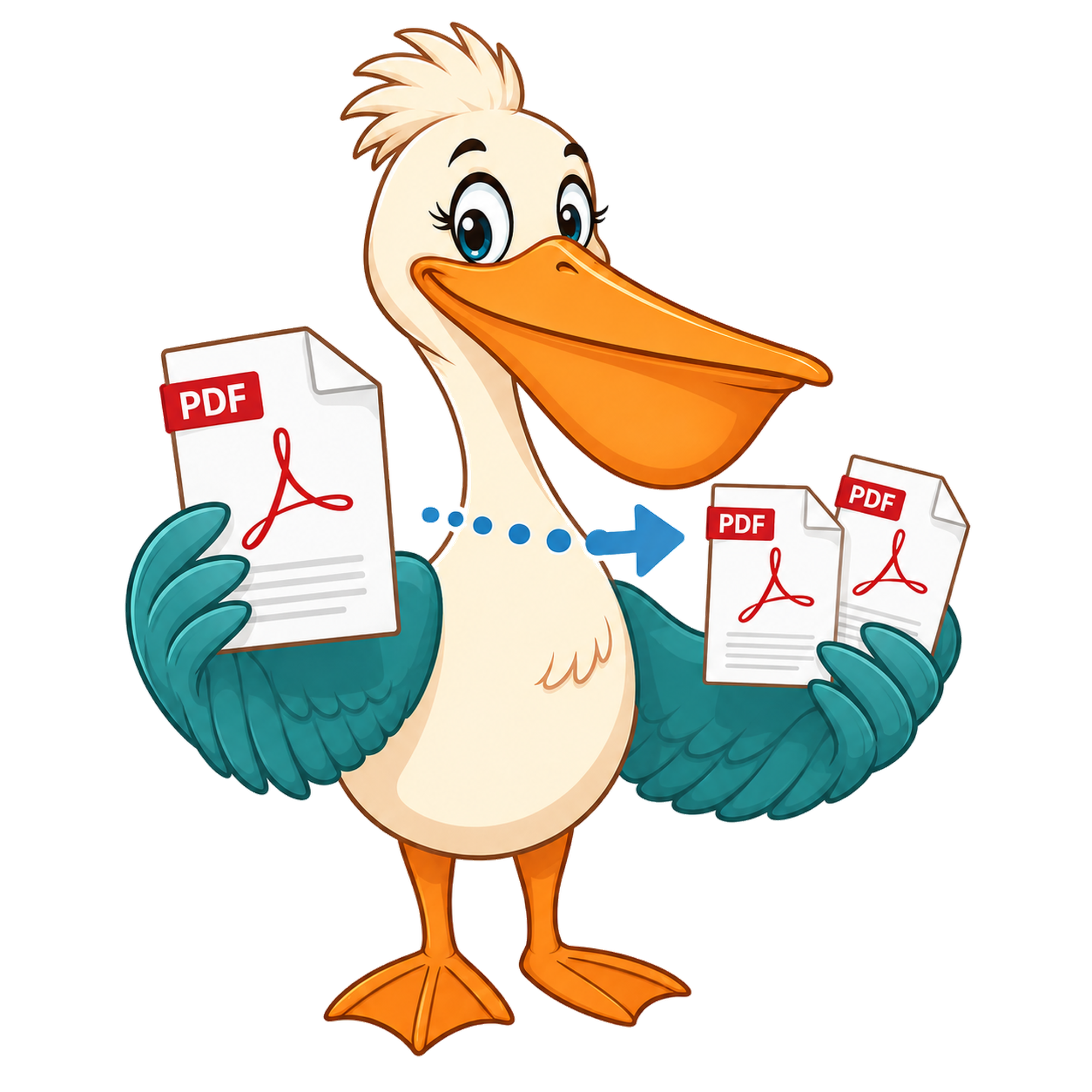
Extract pages from a PDF — free
Pick the specific pages you want, click Extract, and download a new PDF containing only those pages. Free, no watermark.
- Free forever
- No watermark
- No paid plan
- Free for commercial use
- Google Ads funded
- Files stay on your device
Extracting pages from a PDF is the right move whenever you need a few specific pages from a larger document. Maybe you want page 3 and page 17 from a report. Maybe you want the cover page and the appendix from a 90-page proposal. Maybe you want every odd page out of a scanned book chapter.
Page extraction is more flexible than a single page range — you can pick any combination of pages, contiguous or not, and the result is a single PDF that contains exactly those pages in your chosen order.
Extract vs split
A split returns a single contiguous range (pages 5 to 12). An extract returns any set of pages you select (pages 3, 7, 9, 14). Pelican's Split tool supports both — you just choose between range entry and the visual page picker.
Common extraction workflows
Lifting specific signed pages out of a multi-party contract. Pulling the figures and tables out of an academic paper. Building a hand-picked highlights PDF from a long PowerPoint export. Sharing the resume page out of a CV plus cover-letter bundle.
Quality and watermarks
The extracted pages keep their original resolution, fonts, and form fields. The output PDF has no watermark and no injected metadata branding — it's a clean document.
Privacy
Extraction happens entirely in your browser. The PDF doesn't leave your device, which matters for confidential client work or personal documents.
Why people extract pages instead of splitting
Splitting feels right when the document divides cleanly into chunks — chapter one, chapter two, an appendix. Extraction feels right when the pages you actually need are scattered across the document with everything else in between. A 90-page board pack might contain the four slides you need to forward, sitting at pages 6, 17, 42 and 78. Splitting would force you to define four separate ranges and accept four separate output files. Extracting lets you pick those four pages and ship them as one tidy four-page PDF.
The mental model is closer to 'cherry-pick' than 'cut'. You're not breaking the source document into segments; you're assembling a new document out of the pages that matter.
Ordering matters
When you extract a set of pages, you can also choose the order they appear in. Picking pages 5, 2, 9 in that order produces an output where the original page 5 is first, the original page 2 is second, and the original page 9 is third. This is genuinely useful when you're building a highlights pack for a client — you can put the strongest exhibit at the front rather than wherever it happened to sit in the source.
If you want the extracted pages in their original order, pick them in ascending order and they come out the way you'd expect.
Privacy on extraction
Extraction is one of the most privacy-sensitive PDF operations because the whole reason you're doing it is to remove pages the recipient shouldn't see. Uploading the document to a server, even briefly, undermines that intent. PDF Pelican reads the file into your browser tab, extracts in memory, and downloads the result locally. The pages you discarded are discarded — they never touched a PDF Pelican server.
Why people extract pages instead of splitting
Splitting feels right when the document divides cleanly into chunks — chapter one, chapter two, an appendix. Extraction feels right when the pages you actually need are scattered across the document with everything else in between. A 90-page board pack might contain the four slides you need to forward, sitting at pages 6, 17, 42 and 78. Splitting would force you to define four separate ranges and accept four separate output files. Extracting lets you pick those four pages and ship them as one tidy four-page PDF.
The mental model is closer to 'cherry-pick' than 'cut'. You're not breaking the source document into segments; you're assembling a new document out of the pages that matter.
Ordering matters
When you extract a set of pages, you can also choose the order they appear in. Picking pages 5, 2, 9 in that order produces an output where the original page 5 is first, the original page 2 is second, and the original page 9 is third. This is genuinely useful when you're building a highlights pack for a client — you can put the strongest exhibit at the front rather than wherever it happened to sit in the source.
If you want the extracted pages in their original order, pick them in ascending order and they come out the way you'd expect.
Privacy on extraction
Extraction is one of the most privacy-sensitive PDF operations because the whole reason you're doing it is to remove pages the recipient shouldn't see. Uploading the document to a server, even briefly, undermines that intent. PDF Pelican reads the file into your browser tab, extracts in memory, and downloads the result locally. The pages you discarded are discarded — they never touched a PDF Pelican server.
FAQ
- How many pages can I extract at once?
- There's no fixed limit — only your browser's memory.
- Can I reorder the extracted pages?
- Yes. The Split tool's page picker lets you choose pages in any order before exporting.
- Is the original modified?
- No. The original PDF on your machine is left exactly as it was.
- Will the output keep form fields?
- Yes. Form fields, annotations and bookmarks on extracted pages are preserved.
Related free tools
PDF Pelican is funded entirely by Google Ads, which is how we keep every tool free forever with no watermark and no upgrade trap.