
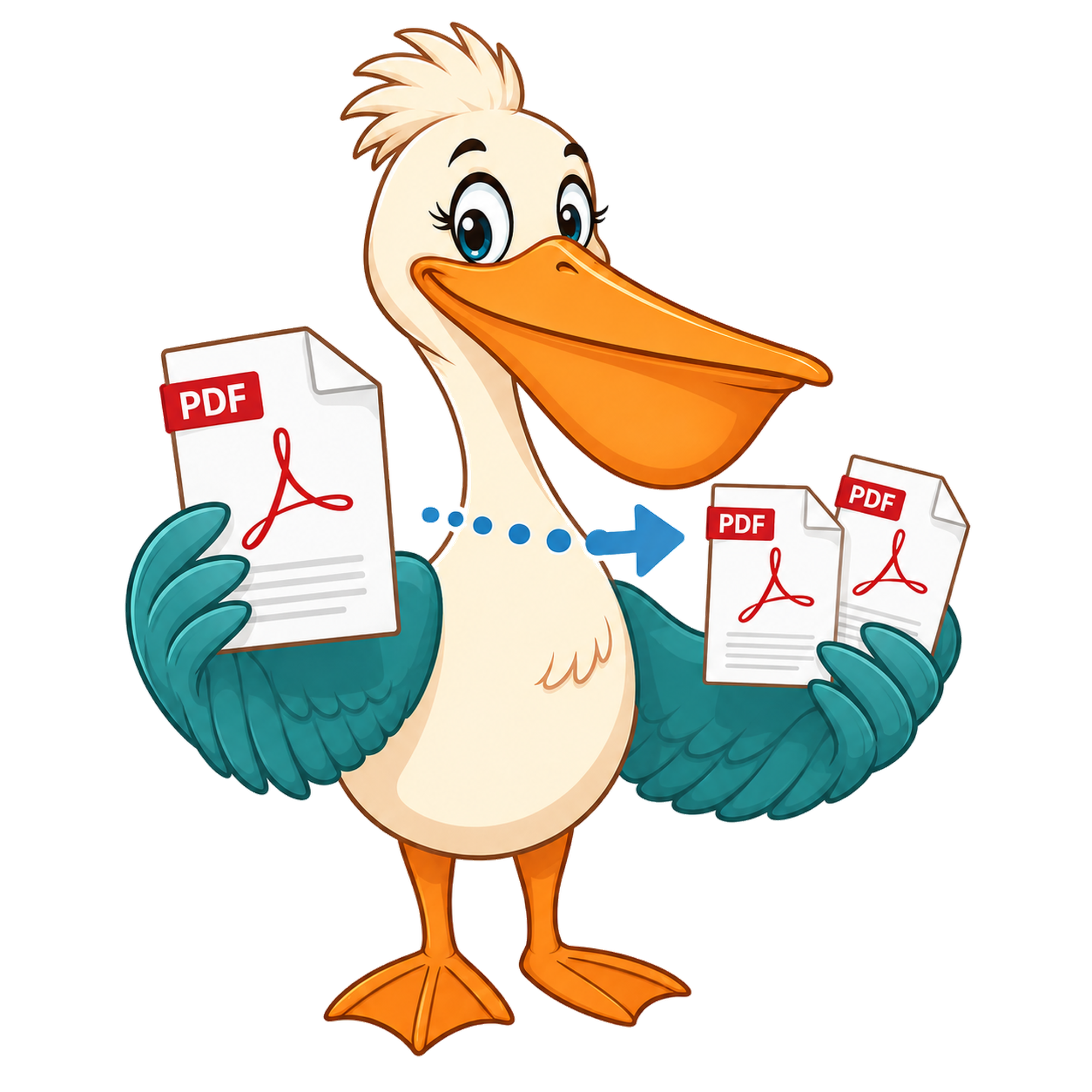
Split a PDF into single pages
The free Burst PDF tool turns a multi-page PDF into one file per page, packaged in a zip. No watermark, no paid plan.
- Free forever
- No watermark
- No paid plan
- Free for commercial use
- Google Ads funded
- Files stay on your device
Sometimes you don't want a range and you don't want a selection — you want every page as its own file. That's a burst. Pelican calls the dedicated tool Burst PDF because it makes the use case unambiguous.
Burst is the right pick whenever the downstream workflow needs to address pages individually: uploading each page as a separate attachment, importing each page into a document-management system, or producing single-page archives.
Why burst into single pages?
Document-management systems often want one file per page so they can OCR and index them independently. Some e-signing tools require single-page uploads. Print shops sometimes accept jobs only as one PDF per page. Scanning workflows often end with a multi-page PDF that needs to be broken back down for archival.
What you get back
A zip file containing one PDF per page, numbered in order — typically page-001.pdf, page-002.pdf, and so on. Each individual file is a real PDF, not an image, so it stays selectable and searchable.
Burst vs split
Burst always produces one file per page. Split lets you pick a range or selection. If you want every page anyway, burst is faster — no configuration step.
Privacy
The burst happens in your browser using WebAssembly. Your file is never uploaded to a server.
Single-page splitting vs bursting
Splitting into single pages and bursting describe almost the same operation: take a multi-page PDF and produce one PDF per page. The two tools differ slightly in defaults. The Split tool defaults to letting you pick which pages become their own file; entering every page number produces the same result as a burst. The Burst tool skips the picker entirely — it always outputs every page as its own file. Pick whichever workflow feels more natural; the output is identical.
If you find yourself splitting into single pages regularly, save the click and use Burst.
What single-page outputs unlock
Once each page is its own file, you can reorder them by dragging in your operating system, attach individual pages to different emails, drop specific pages into a Merge to rebuild a customised document, route pages through different downstream tools, or archive each one separately. The single-page format is the universal interchange unit for PDFs.
Naming and organisation
Output files are named page-1.pdf, page-2.pdf, and so on, packaged into a single zip download. If you need a different naming scheme — say, by chapter or by invoice number — rename in bulk after downloading using your operating system's file manager.
Privacy
Splitting happens in your browser. The original PDF is not uploaded; the individual page files are built locally and downloaded directly. That's particularly relevant when the document contains confidential information you'd rather not hand to a third party even briefly.
Single-page splitting vs bursting
Splitting into single pages and bursting describe almost the same operation: take a multi-page PDF and produce one PDF per page. The two tools differ slightly in defaults. The Split tool defaults to letting you pick which pages become their own file; entering every page number produces the same result as a burst. The Burst tool skips the picker entirely — it always outputs every page as its own file. Pick whichever workflow feels more natural; the output is identical.
If you find yourself splitting into single pages regularly, save the click and use Burst.
What single-page outputs unlock
Once each page is its own file, you can reorder them by dragging in your operating system, attach individual pages to different emails, drop specific pages into a Merge to rebuild a customised document, route pages through different downstream tools, or archive each one separately. The single-page format is the universal interchange unit for PDFs.
Naming and organisation
Output files are named page-1.pdf, page-2.pdf, and so on, packaged into a single zip download. If you need a different naming scheme — say, by chapter or by invoice number — rename in bulk after downloading using your operating system's file manager.
Privacy
Splitting happens in your browser. The original PDF is not uploaded; the individual page files are built locally and downloaded directly. That's particularly relevant when the document contains confidential information you'd rather not hand to a third party even briefly.
FAQ
- How are the output pages named?
- page-001.pdf, page-002.pdf, etc., zero-padded to keep the natural sort order correct.
- Is there a page-count limit?
- No fixed limit — only your browser's available memory.
- Will text stay searchable?
- Yes. Each single-page PDF is a real PDF, not a rasterised image.
- Do I get a zip?
- Yes — the single-page PDFs are packaged into one zip file for download.
Related free tools
PDF Pelican is funded entirely by Google Ads, which is how we keep every tool free forever with no watermark and no upgrade trap.