
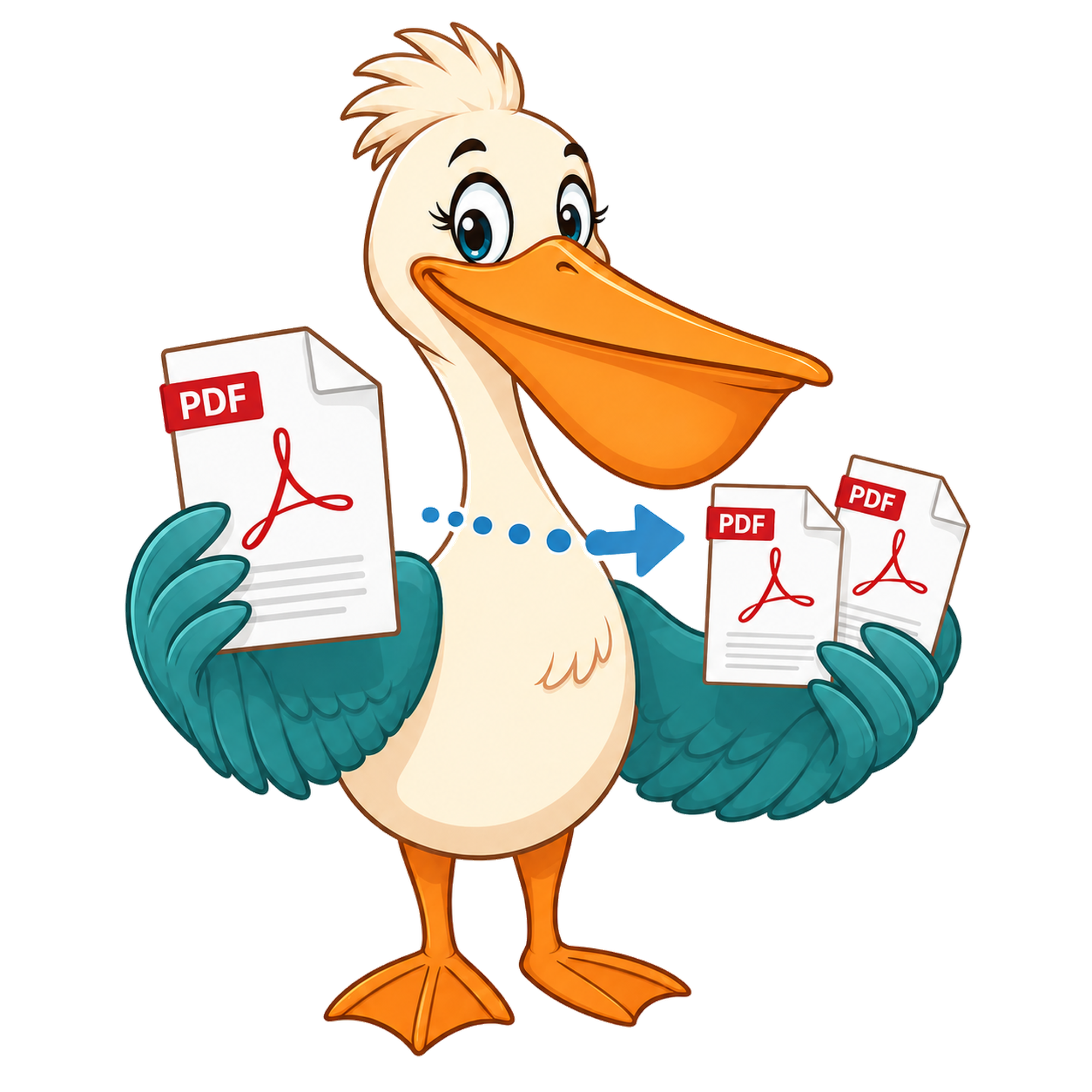
What is 'burst PDF'?
Bursting a PDF means splitting it into one file per page — every page becomes its own PDF. It's the right move when downstream tools need single-page inputs.
- Free forever
- No watermark
- No paid plan
- Free for commercial use
- Google Ads funded
- Files stay on your device
'Burst' is one of those PDF jargon words that means something very specific and isn't documented anywhere obvious. If you've seen 'burst PDF' as an option in a script, a print shop spec sheet, or a document-management import dialog and weren't sure what it was — this page is for you.
Short version: bursting takes a multi-page PDF and produces one new PDF per page. A 12-page document becomes 12 single-page PDFs. The pages keep their original quality, fonts, and form fields.
Where the name comes from
The verb comes from the pdftk command-line tool, which has had a 'burst' operation since the early 2000s. The name stuck because it's a vivid description of what happens: a single document is burst open into its component pages, like a piñata.
Burst vs split vs extract
Burst: every page becomes its own PDF. No configuration. Split: pick a page range and get one PDF with just those pages. Extract: pick any combination of pages and get one PDF with those pages.
If you want every page broken out separately, burst. If you want a chunk of pages as one PDF, split. If you want a custom selection, extract.
When bursting is the right call
Importing into document-management systems that want one file per page. E-signing tools that accept single-page uploads. Print shops that bill per-page-file. Archival workflows that store one page per record.
How Pelican does it
The free Burst PDF tool runs in your browser. Drop in the PDF, click Burst, and download a zip containing one PDF per page. There's no watermark and no page-count limit beyond your browser's memory.
Burst, in plain terms
Bursting a PDF means taking a multi-page document and producing one new PDF for every page in it. A 25-page input becomes 25 one-page output files, usually packaged as a zip so you can download them in one click. The word 'burst' comes from print production, where a 'burst' would split a continuous-form printout into individual sheets along its perforations.
It's distinct from splitting in one specific way: splitting lets you choose ranges and skip pages. Bursting always processes every page. If you find yourself splitting on every single page boundary, burst is the faster shortcut.
When bursting is the right call
Bursting is the right operation whenever you have a document that's logically a stack of independent items printed together: event tickets, certificates, invoices, payslips, lab reports, course handouts, exam papers. The PDF is one file for convenience, but each page needs to leave the file separately. Burst once and you've got the right number of files at the right granularity.
It's also a useful preprocessing step before reordering. Burst into individual pages, then drag them into the Merge tool in the order you want, and you've effectively done a page-level rearrangement without needing a dedicated reorder UI.
What burst preserves
Each output file is a valid, self-contained PDF. Text, fonts, images, form fields, annotations, and links anchored to the page travel with that page. Cross-page links and document-wide outlines are dropped, because they no longer make sense on a one-page document.
Privacy and limits
Bursting runs in your browser using WebAssembly. The PDF isn't uploaded — the page extraction happens locally and each output is built in memory before being added to the zip. The only practical limit is your device's memory; a modern laptop comfortably bursts documents in the hundreds of pages.
Burst, in plain terms
Bursting a PDF means taking a multi-page document and producing one new PDF for every page in it. A 25-page input becomes 25 one-page output files, usually packaged as a zip so you can download them in one click. The word 'burst' comes from print production, where a 'burst' would split a continuous-form printout into individual sheets along its perforations.
It's distinct from splitting in one specific way: splitting lets you choose ranges and skip pages. Bursting always processes every page. If you find yourself splitting on every single page boundary, burst is the faster shortcut.
When bursting is the right call
Bursting is the right operation whenever you have a document that's logically a stack of independent items printed together: event tickets, certificates, invoices, payslips, lab reports, course handouts, exam papers. The PDF is one file for convenience, but each page needs to leave the file separately. Burst once and you've got the right number of files at the right granularity.
It's also a useful preprocessing step before reordering. Burst into individual pages, then drag them into the Merge tool in the order you want, and you've effectively done a page-level rearrangement without needing a dedicated reorder UI.
What burst preserves
Each output file is a valid, self-contained PDF. Text, fonts, images, form fields, annotations, and links anchored to the page travel with that page. Cross-page links and document-wide outlines are dropped, because they no longer make sense on a one-page document.
Privacy and limits
Bursting runs in your browser using WebAssembly. The PDF isn't uploaded — the page extraction happens locally and each output is built in memory before being added to the zip. The only practical limit is your device's memory; a modern laptop comfortably bursts documents in the hundreds of pages.
FAQ
- Is 'burst' a standard PDF operation?
- It's not part of the PDF specification, but the term is well established thanks to pdftk and is used widely in document workflows.
- Will form fields survive?
- Yes. Each single-page PDF keeps its own form fields, annotations and bookmarks.
- Do I get one big file or many?
- Many — packaged into a single zip for download.
- Is the Burst tool free?
- Yes. No paid plan, no watermark.
Related free tools
PDF Pelican is funded entirely by Google Ads, which is how we keep every tool free forever with no watermark and no upgrade trap.